
Before you start
You need Chrome and an active Adobe Stock Contributor account. If you only have a regular Adobe login, finish setting up the Contributor account first.
The extension checks whether either account has already created images with StockPhotoScout. Images uploaded to Adobe without StockPhotoScout do not count here. If either account has a StockPhotoScout record, the free task is unavailable and the extension shows regular Auto Upload instead.
If the Adobe account was used for a free task, the extension says so. If the older 80-credit offer was already added, it shows your current credit balance instead of saying the free task was used.
Install StockPhotoScout from the Chrome Web Store
Open or create your Adobe Stock Contributor account
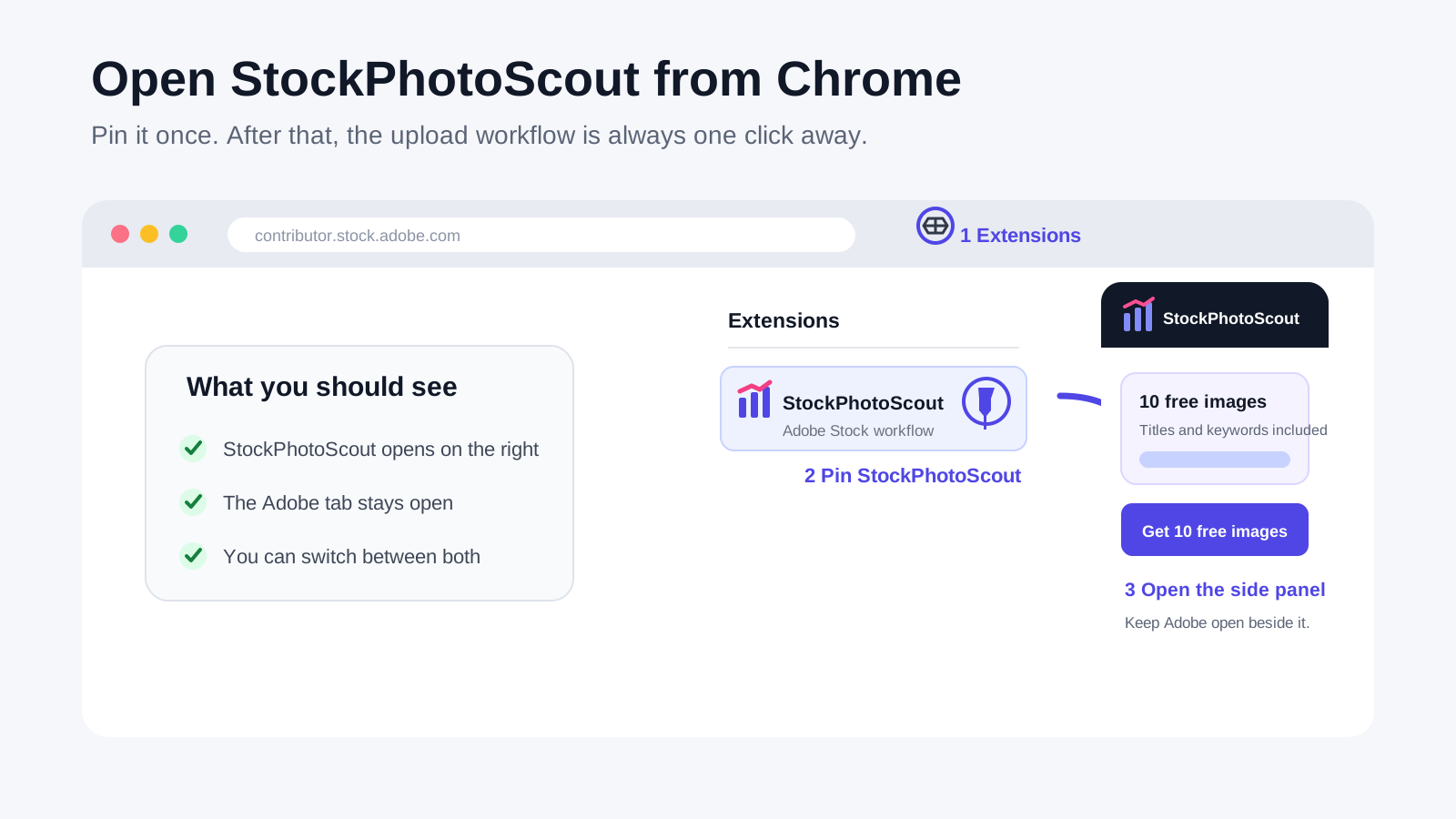
1. Install and open StockPhotoScout
- Add StockPhotoScout to Chrome.
- Select the Extensions icon in the Chrome toolbar, then pin StockPhotoScout.
- Select the StockPhotoScout icon. The extension opens in Chrome’s side panel.
- Choose Get 10 free images if you are new. Choose Log in if you already have a StockPhotoScout account.

2. Sign in to the Adobe account you want to use
Use the same Chrome profile for StockPhotoScout and Adobe. This lets the extension see the Adobe account you just opened.
- In the extension, select Open Adobe Stock.
- Sign in to the Adobe Stock Contributor account that should receive these images.
- Keep the Adobe tab open and return to the StockPhotoScout side panel.
- Wait while the extension checks the account. If it asks which Adobe account to use, confirm the account name before continuing.
3. Follow the one action shown for this Adobe account
The extension shows one next step. Select Connect Auto Upload if no connection is saved, Reconnect Auto Upload if the saved details no longer work, Retry Check after a temporary connection error, or Start Auto Upload when the connection is ready. Generate Images for Download appears only when the extension confirms that Adobe has not enabled SFTP for that account.
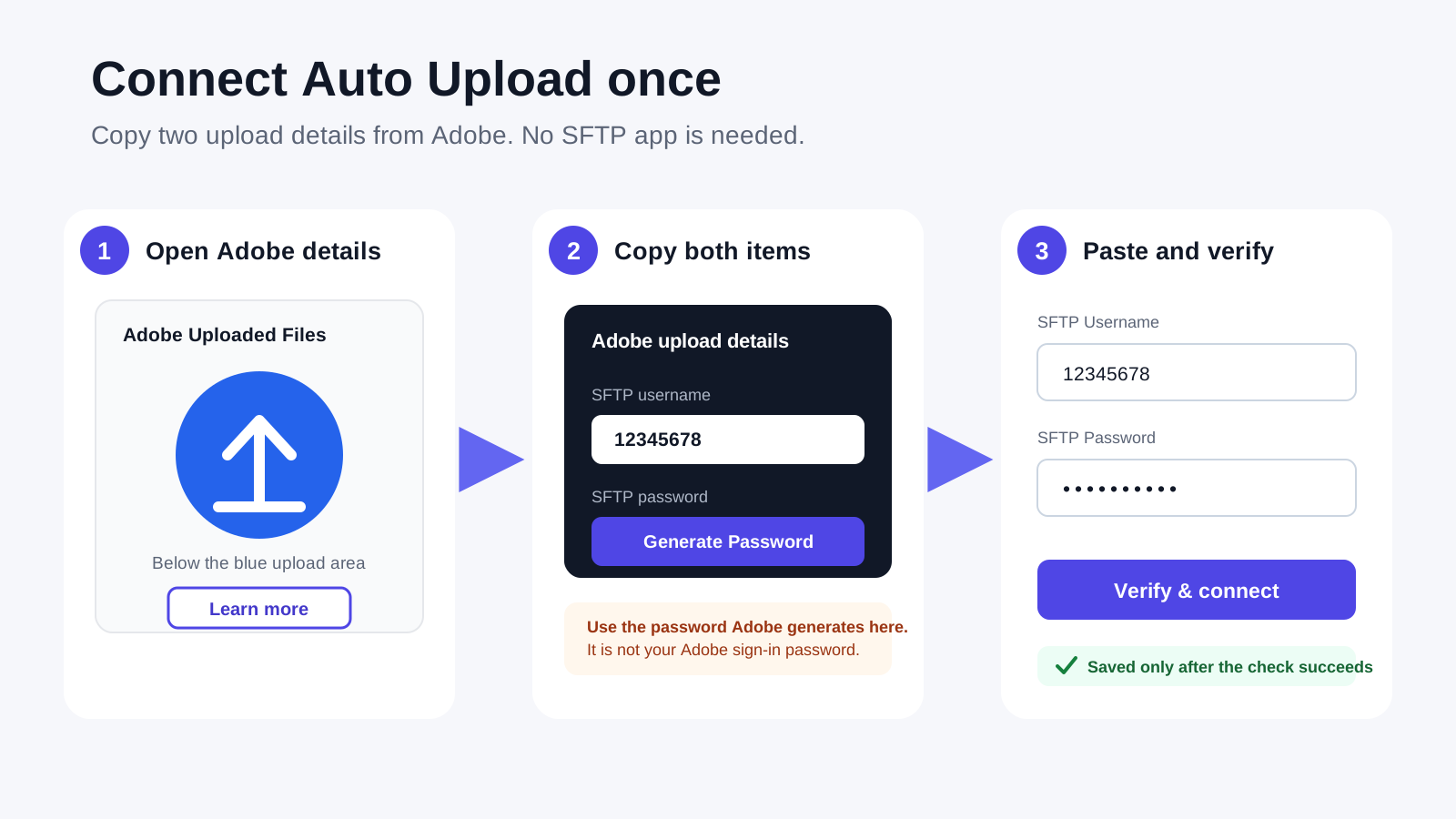
4. Connect Adobe Auto Upload once
Adobe calls its file-transfer login SFTP. You do not need to install an SFTP app. StockPhotoScout only needs the username and the password that Adobe generates for uploads.
- On the Connect Auto Upload page, select Open Adobe upload window.
- Below Adobe’s blue upload area, select Learn more.
- Copy the SFTP username shown by Adobe.
- Select Generate Password in Adobe, then copy the new password. This is not your Adobe sign-in password.
- Paste both items into StockPhotoScout and select Verify & connect.

5. Complete the security check and start the 10-image task
You do not need to choose a theme or quantity for this first task. The extension sets the quantity to 10. The progress bar remains available if you close and reopen the side panel.
- Select Start security check if the extension asks for it.
- Complete the check in the StockPhotoScout tab, then return to the extension.
- Select Start Auto Upload.
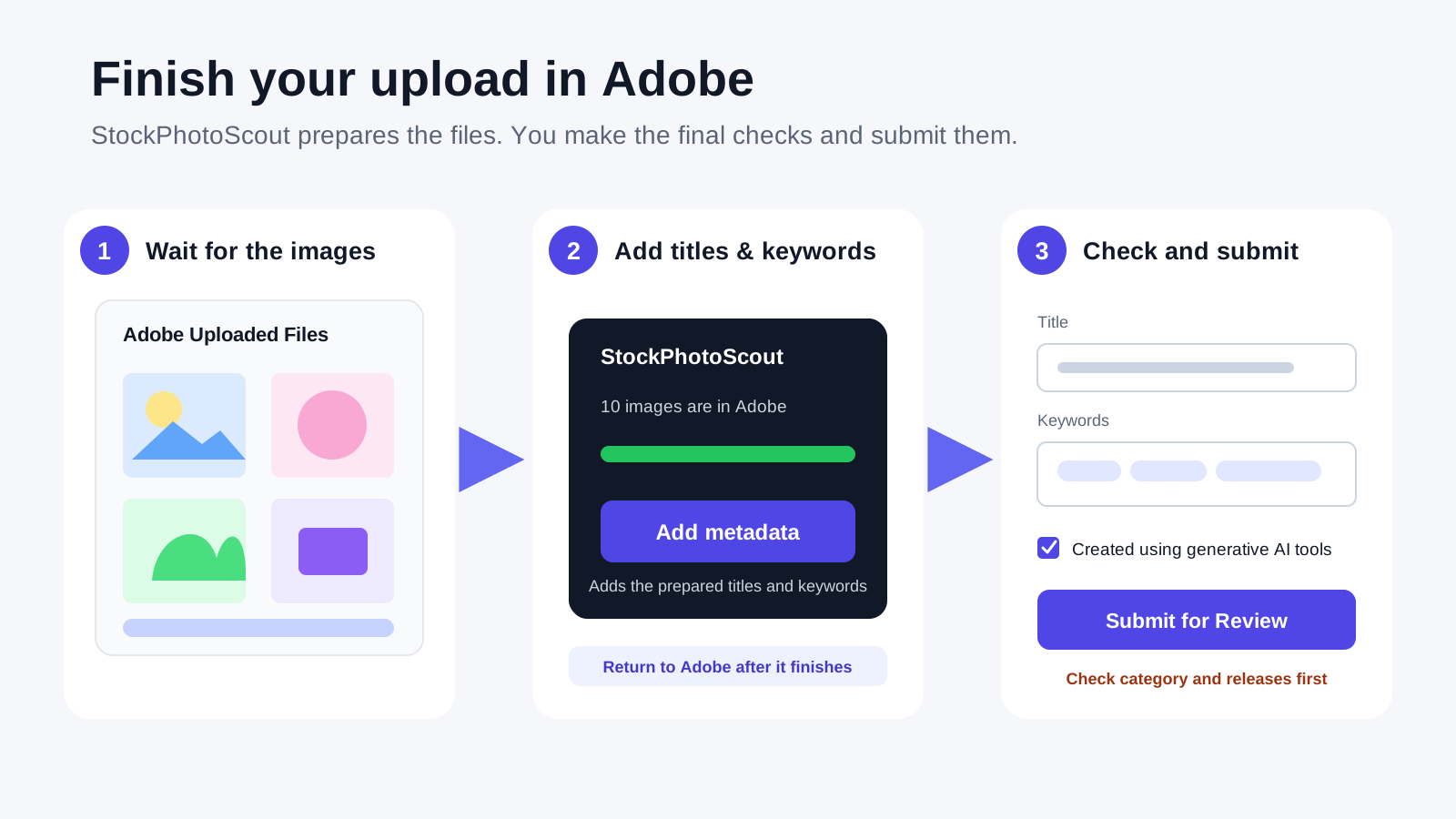
6. Review the files and submit them in Adobe
StockPhotoScout prepares the files and information, but only you can submit the images to Adobe for review.
- Select Review in Adobe Stock after the extension says the images were sent to Adobe.
- Wait until the images appear in Adobe. Return to the extension and select Add metadata to add the prepared titles and keywords.
- In Adobe, check that each title and keyword set matches its image. Confirm the AI-generated label, category, and any release requirements.
- Select Submit for Review in Adobe.

If something stops, continue from that step
StockPhotoScout still shows you as signed out
Make sure the website and extension use the same Chrome profile. Log in on StockPhotoScout, then return to the side panel.
The extension cannot find Adobe
Select Sign in to Adobe Stock, finish signing in to the Contributor account, and keep that Adobe tab open.
The Adobe account check does not finish
Keep the Adobe upload window open, return to the extension, and select Try again.
The free option does not appear
The extension shows the reason: this StockPhotoScout account or Adobe account may already have created images with StockPhotoScout, the Adobe account may have been used for a free task, the older 80-credit offer may already have been added, or today’s spots may be gone. The extension then shows your current credits and the regular Auto Upload path.
Auto Upload does not connect
Copy the SFTP username again and select Generate Password in Adobe to create a new upload password. Return to StockPhotoScout and select Reconnect Auto Upload.
Fewer than 10 images are ready
Keep the task open while it is retrying. If the extension shows Retry, it resumes the same free task. If retry is no longer available, the extension shows the actual completed count and tells you to contact support instead of calling the task complete.
The 20 free spots have been claimed
Twenty free spots are available each day. Please check back later; no paid task is created when that day's spots have been claimed.